

Intro
Microsoft does not offer a single-pane-of-glass dashboard or reporting function for Entra ID role management. That’s not an opinion, it’s the reality we work with.
As a Solutions Architect or Security Engineer, you need to know the current state of privileged access before you can design anything. Whether you’re inventorying a client environment, planning an implementation, running an audit, or streamlining PIM configurations, you first need visibility. And right now, getting that visibility is not simple.
When I discussed this with colleagues, the problem became clear: getting proper insight into PIM configuration would be a pain. Doing it visually? Even harder. Doing it periodically for non-technical stakeholders who need to understand the security posture? Near impossible with native tooling.
That’s why I started building PIM Manager.
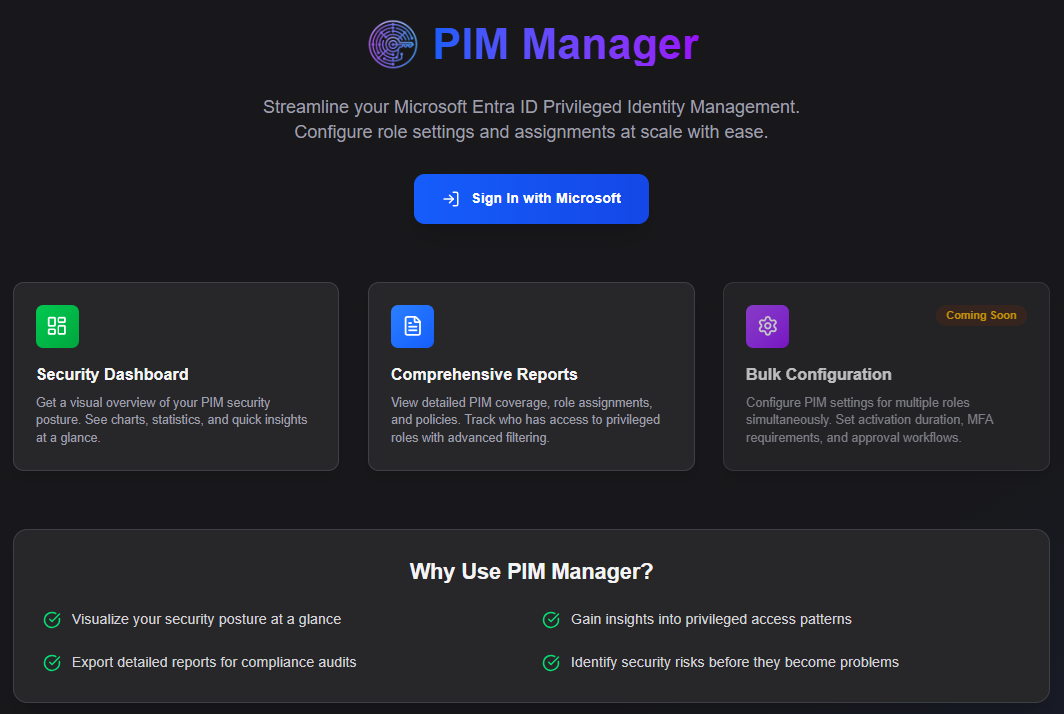
The gap that Microsoft left behind
The truth is: if you want to understand your Entra ID role configuration at scale, your options are clickops or scripting. Neither is pleasant.
Clickops means clicking through the portal, role by role, blade by blade, copying settings into a spreadsheet. Scripting means writing and maintaining PowerShell or Graph API calls, parsing JSON, and building your own reports. Both approaches are manual, time-consuming, and prone to errors.
The questions seem simple:
Which roles allow permanent assignments that bypass PIM?
Is MFA enforced on all privileged roles?
Which roles have approval workflows, and who are the approvers?
Are there any “shadow admins” hiding in direct role assignments?
Getting answers should not require a day’s worth of work. This is the gap that PIM Manager fills.
What PIM Manager actually does
PIM Manager is about insight and getting in control of your governance. It’s a tool for dashboarding, reporting, and gaining an overview - bringing together everything the portal spreads across a dozen different blades.
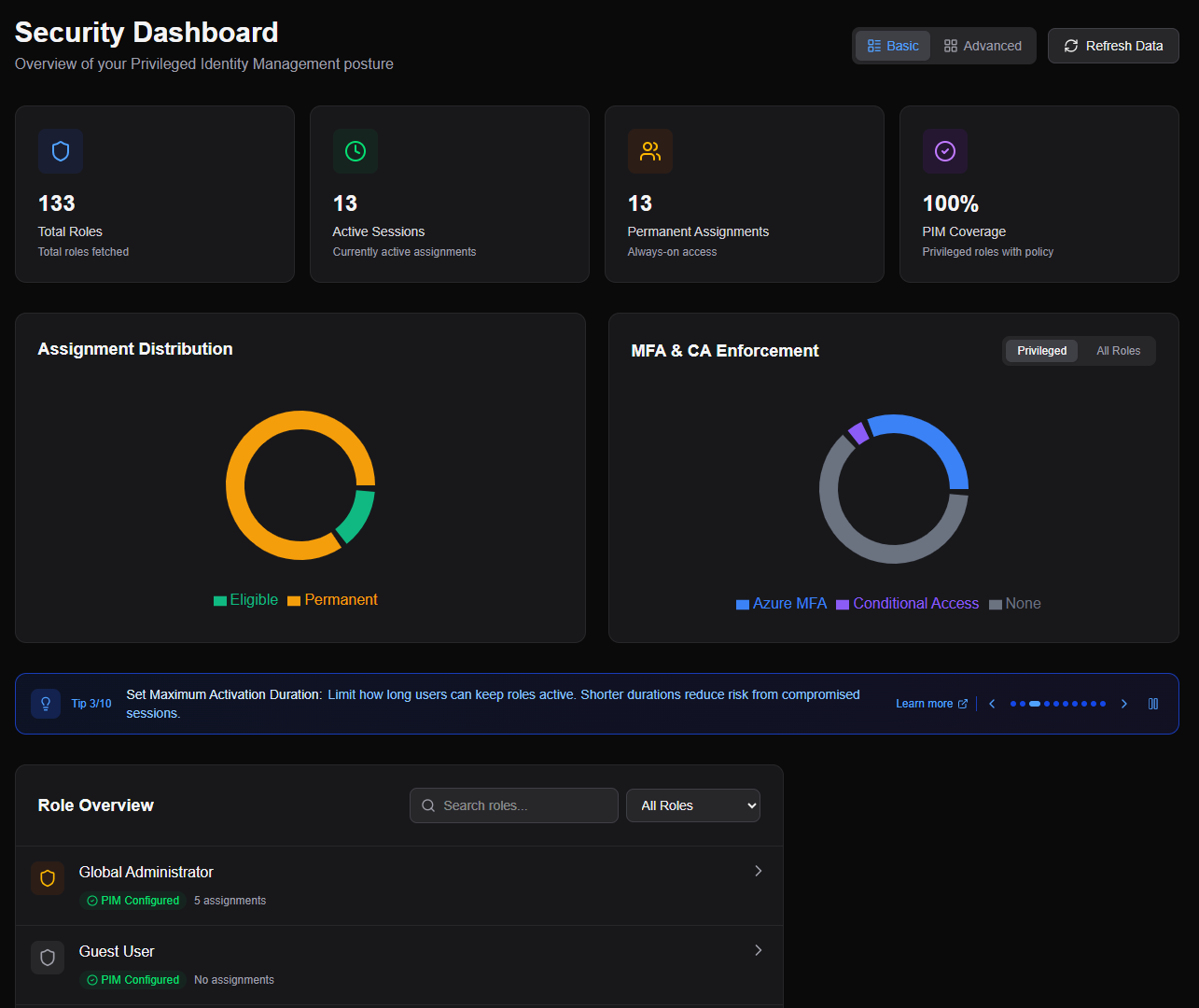
The Dashboard gives you immediate visual insight into your environment’s health. You see cards showing total roles, active sessions, permanent assignments, and PIM coverage. Charts break down the distribution of privileged versus non-privileged roles and assignment types across your tenant. There’s an overview of configured approvers, because knowing who can approve Global Admin activations should not require digging through individual role policies. Configuration errors are shown, so you catch problems before auditors do.
The Report lets you go deeper. You see every role in your tenant, both built-in and custom, with the assignment breakdown front and center. How many are eligible? How many are active? How many permanent? Expand any role, and you see its full configuration: maximum activation duration, MFA requirements, justification settings, approval workflows, approvers, and scope information. You can filter by almost anything: privileged roles only, roles with permanent assignments, or roles assigned to a specific user. And when you need an offline copy for documentation, compliance evidence, or just to filter and highlight in your own spreadsheet, export it with one click.
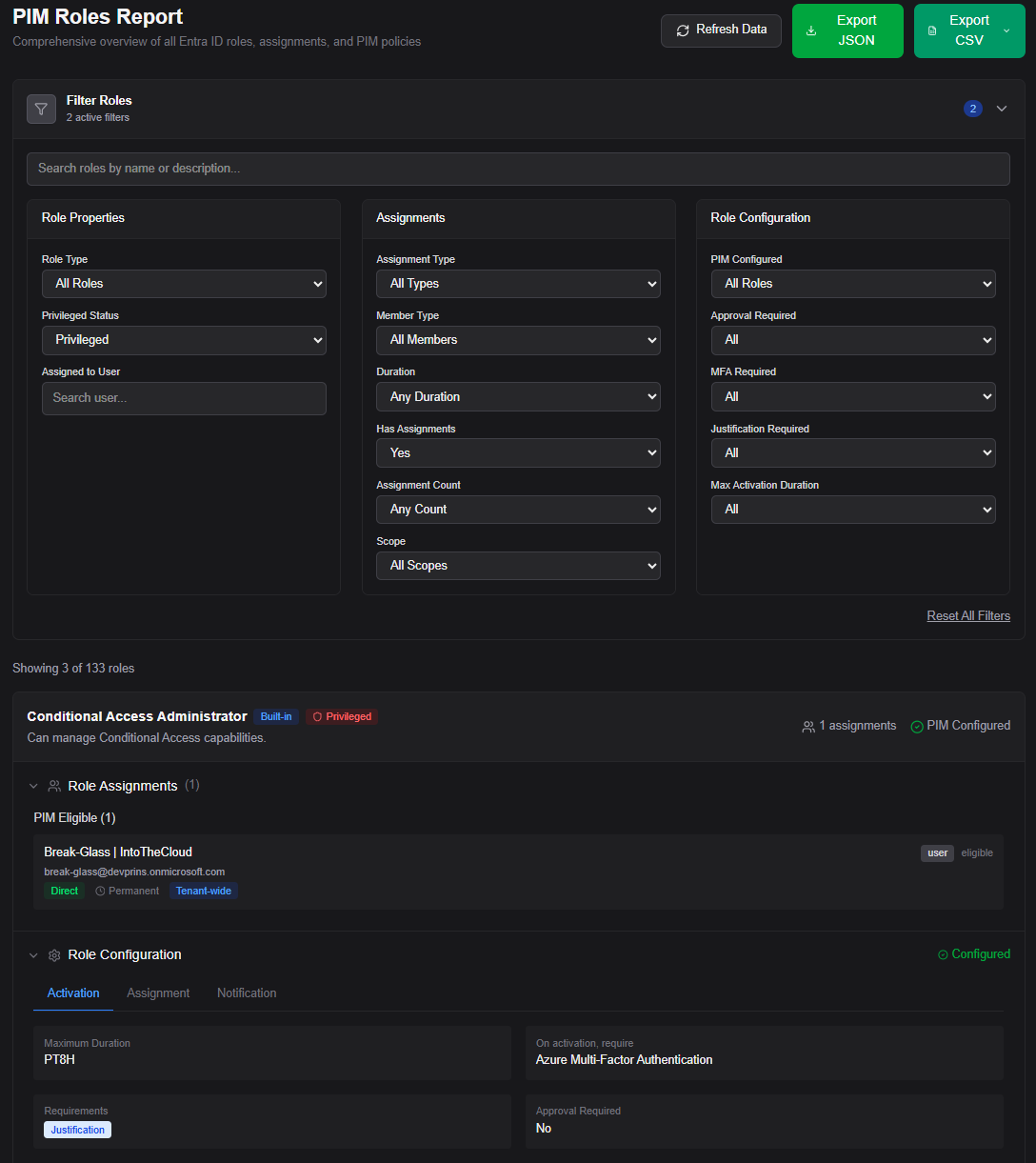
You’re never locked into the tool as your only source of truth.
The architecture: keeping it simple (and safe)
When I started building PIM Manager, I had to make a fundamental decision: where does the data processing happen?
I chose the browser. PIM Manager is a pure single-page application. There is no backend server that I control. There is no database storing your tenant’s privileged access data. Everything runs in your browser, using your authentication token, talking directly to Microsoft Graph.
This isn’t just a technical choice; it’s a security posture. I don’t see your data. I can’t see your data. The application follows the permissions your account holds in Entra ID. If you can’t read a role assignment in the portal, you can’t read it in PIM Manager either.
For performance, data is cached locally in your browser session. When you sign out, that cache is cleared. Nothing persists.
Tip: For a complete picture of all roles, assignments, and configurations, use an account with at least the Global Reader role. Or put that role behind Eligible PIM first - then you’ll need to activate before you can even see all the data ;-)
The hard parts: what I learned building against Graph API
Building against Microsoft Graph is powerful, but PIM-related APIs come with challenges.
The permission model requires care. I aimed for least privilege. The app uses granular permissions like RoleEligibilitySchedule.Read.Directory and RoleManagementPolicy.Read.Directory rather than broad permissions like Directory.Read.All. The goal was to keep day-to-day auditing safe and low-risk. You should be able to see your configuration without needing write access.
The bigger challenge was the data loading pattern. Fetching all role definitions is cheap, just one API call. Fetching all assignments is also manageable, since you can get them all in one request. But fetching the role configuration for each role? That requires a separate API call per role. A fresh Entra ID tenant already has around 130 built-in roles. That’s 130 additional requests before you’ve even added custom roles. Or Microsoft decides to add another role tomorrow ;-)
Send all those requests at once, and Microsoft will throttle you instantly. HTTP 429 errors stack up, and your users see a broken loading screen.
I solved this by building smart. First, the app loads the cheap data: role definitions and assignments. This needs only a handful of API calls. It gives you an immediate, usable overview within seconds. You can already see who has access to what.
Then, in the background, workers fetch the per-role configurations in parallel but controlled queues. Each worker respects rate limits. The UI shows a progressive loading bar (”Fetching configuration 15/130...”) so you always know the app is working, not stuck. By the time you’ve scanned your first few roles, the configurations are already loading behind you.
The insights you shouldn’t ignore
Once you have proper visibility, you start seeing things you shouldn’t want to ignore.
Permanent assignments are a good example. These are direct role assignments that bypass PIM entirely. No activation required. No MFA on activation. No time limit. No approval workflow. The user simply has the role all the time.
Sometimes that’s intentional. Break-glass accounts, for example, need permanent Global Admin access. But in many tenants, permanent assignments are legacy configurations, shadow admins, or problems that nobody cleaned up. Without visibility, you don’t know they exist.
PIM Manager makes these obvious. When you see a “Permanent” badge next to a privileged role during an audit, you can’t unsee it. The conversation shifts from “we think our PIM is configured correctly” to “here are the five roles we need to fix.”
The bigger picture
PIM Manager started as a way to save my own sanity. It grew into a tool that solves a real problem in getting control over PIM, and I mean all Privileged Identity Management, not just the Microsoft product.
Whether you’re designing a role model, running an audit, onboarding to a new tenant, or just trying to understand who has admin access, PIM Manager provides the insight the native portal is missing.
Hours of clicking become seconds of reviewing. Guessing becomes data.
What’s next
This is version one. Here’s where I’m heading next:
Configure page - A way to modify role configurations in bulk, but safely and controlled. Adjust activation settings, approval requirements, or create assignments across multiple roles without clicking through each one manually.
PIM for Groups - Extending the same visibility and control to group-based privileged access, not just directory roles.
Try it yourself: pimmanager.com
Time to stop struggling and start managing.
Thanks for taking the time to read this blog!
Do you have any feedback or adjustments I should make? Please let me know.
any chance of sharing the code to allow for self hosting.