

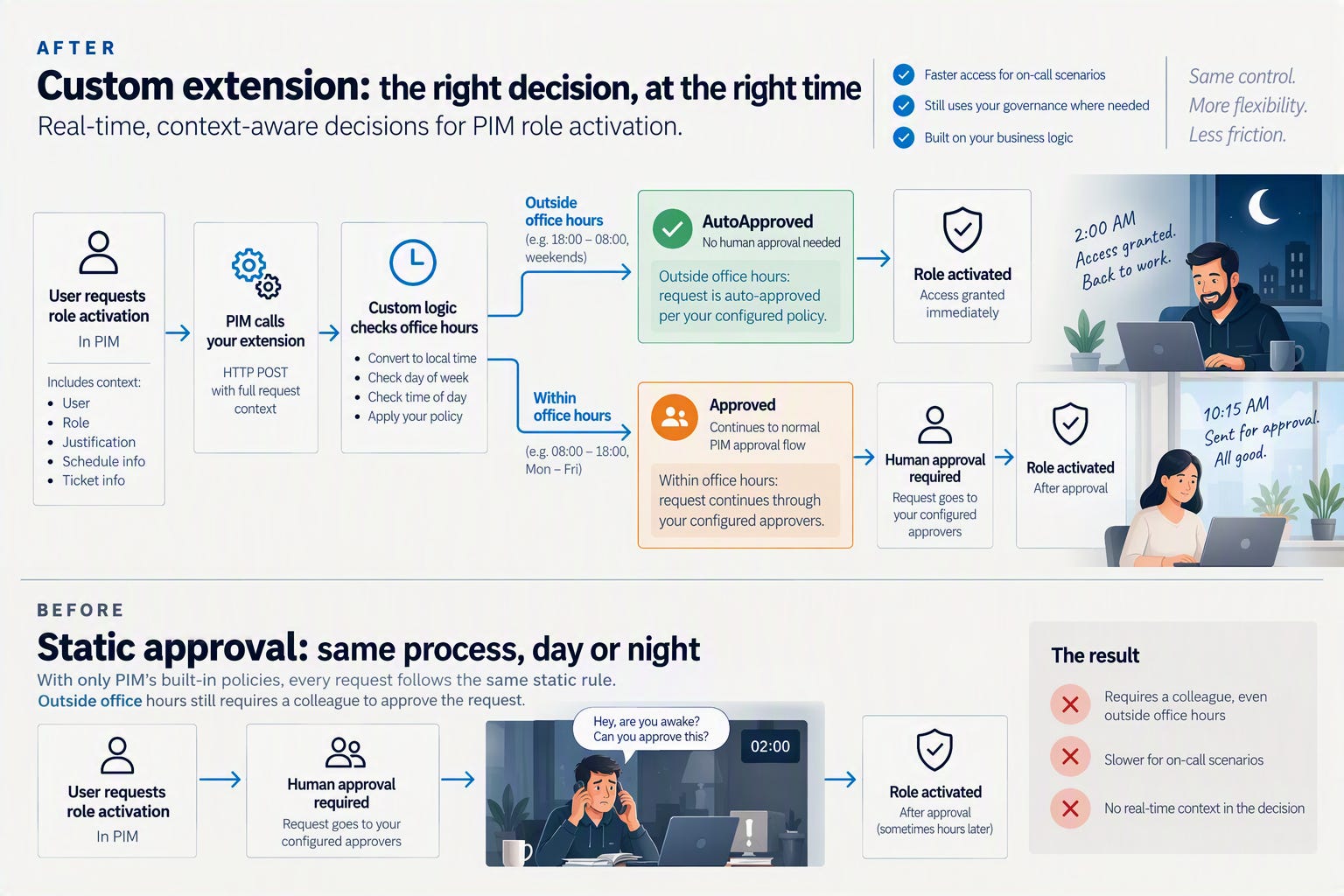
PIM’s approval logic hasn’t changed much in years. You get a fixed list of approvers, a checkbox for MFA, and a free text field for a ticket number that nobody checks. Someone types “INC0042”, the activation goes through, and the field has done nothing except make the form look more official.
Custom extensions for Privileged Identity Management are meant to close that gap. Instead of applying a static rule, PIM calls a REST API you own, passes it the full context of the activation request, and lets your code decide what happens next. The feature works for PIM for Groups, PIM for Microsoft Entra roles, and PIM for Azure resources. It’s in preview, and you can only manage the extension itself through Graph beta, not V1.0.
Check the licensing first, because it decides whether you can try this at all. On top of the Microsoft Entra ID P2 license PIM already requires, custom extensions need Microsoft Entra ID Governance or Microsoft Entra Suite. Without one of those, the rest of this post stays theory.
While wiring one up in late September, none of this was documented:
A second gate that runs after approval.
An audit mode in the portal
Two places where the portal and the docs didn’t line up.
Microsoft rewrote the docs page on October 12, partway through me writing this, and caught up on most of it. One gap is still open.
That’s what this post covers, including what changed in between.
Part 2 is the build itself, a Logic App behind API Management, and the debugging session that came with it.
The gap in PIM’s own policies
A PIM policy is a set of static rules: require MFA, require approval, require a justification, cap the duration. You decide all of that once, when you configure the role. The policy has no idea what’s going on at the moment someone activates it. It doesn’t know if there’s an active incident, whether the requestor is on call tonight, or whether the change ticket they typed in still exists.
For most rules, most of the time, that’s fine. It stops being fine when “most of the time” isn’t good enough, your business isn’t able to handle so many manual approvals, or you want to automate it and connect it to your ticketing system. A policy that always requires approval slows down the on-call engineer who needs Global Administrator at 2 am. A policy that never requires approval for a role assumes nothing about the requestor’s situation ever changes. Static rules can’t express “it depends”, and a lot of real access decisions come down to exactly that.
What a custom extension does
When someone activates a role, PIM sends an HTTP POST to your endpoint with the full activation request: who’s asking, for which role, with which justification, and any ticket information they entered. Your endpoint answers with one of three outcomes:
Approved: the request continues through the normal PIM flow, including any human approval stage you still have configured.AutoApproved: the request skips manual approval.Denied: the request is blocked, and the text in thereasonarray is shown in the PIM activation screen.
Microsoft’s own example of a denial:
{
  "evaluationId": "cccc2222-dd33-4444-55ee-666666ffffff",
  "evaluationOutcome": "Denied",
  "reason": ["Requestor has not cleared Cloud Screening"]
}
reason is a plain array of strings, and the requestor sees exactly what you put in it. It’s the only feedback they get in the activation screen, so write it for the person reading it. If an approver or your security team also needs to know about a denial, your endpoint has to take care of that.
That’s the whole contract. Any HTTPS endpoint that speaks JSON and validates a bearer token will do, no SDK required. A Logic App is the obvious choice for this kind of “receive a webhook, run some logic, respond” workflow, and it’s already the default runtime for the same pattern elsewhere in Entra. Entitlement Management has had custom extensions on access packages for a while, and Lifecycle Workflows has custom task extensions. PIM’s version is built on the same pattern: app registration, bearer token, HTTPS callout, Logic App. If you’ve built one of the others, most of what you know carries over.
Two gates, not one
When you tick “Require pre-approval custom extension to activate” in the role settings, you’d expect one checkbox to mean one gate. The policy behind it tells a different story.
I linked a custom extension to a role and pulled the resulting policy from Graph. Reading the policy rules works on v1.0, even though managing the extension itself still needs beta:
GET https://graph.microsoft.com/v1.0/policies/roleManagementPolicyAssignments?$filter=scopeId eq '/' and scopeType eq 'Directory' and roleDefinitionId eq '{roleDefinitionId}'
    &$expand=policy($expand=rules)
The rules array contains two custom extension slots. This is the pre-approval slot, linked to our extension:
{
  "@odata.type": "#microsoft.graph.unifiedRoleManagementPolicyCustomExtensionRule",
  "id": "CustomExtension_PreApproval_EndUser_Assignment",
  "isEnabled": true,
  "customExtensionId": "a05c9349-5950-4884-bab4-7fb6aa3e4ff5",
  "displayName": "Outside office hours",
  "customAttributes": ["Reason outside office hours"]
}
Next to it sits CustomExtension_PostApproval_EndUser_Assignment, unlinked, with customExtensionId: "", displayName: null and isEnabled: false. Both slots were present in every policy I pulled, whether a custom extension had ever been configured for that role or not.
Pre-approval runs before the approval decision and decides whether the request gets considered at all. Post-approval runs after the decision, human or automatic, but still before the role goes live.
Microsoft’s docs describe both now, but they didn’t when I pulled this policy in September.
That difference matters more than it sounds. An approver can sit on a request for twenty minutes, and in that time a change window can close, an on-call shift can end, or a ticket can get resolved. Pre-approval only sees the situation at request time. Post-approval gets one more look right before access is granted.
The two gates don’t even share a response contract. Pre-approval expects the capitalized Approved / AutoApproved / Denied from earlier in this post. Post-approval expects lowercase approved / denied, plus a third option pre-approval doesn’t have: deferred. Return deferred and PIM parks the request in PostApprovalExtensionPendingEvaluation without provisioning the role, your extension calls back later through /updateRequest with the real verdict. Useful if a post-approval check genuinely needs more time than PIM’s own timeout allows.
Audit mode
The checkbox also hides a mode the docs don’t mention. When you tick “Require pre-approval custom extension to activate” and pick an extension, the portal shows two radio buttons: Audit mode and Enabled. Only Enabled sets isEnabled: true on the rule. Audit mode keeps the extension linked, with customExtensionId and displayName filled in, while isEnabled stays false. The gate is wired up but doesn’t decide anything yet.
That gives you a safer way in. Link an extension, leave it in audit mode, and switch to Enabled once you trust it, instead of finding out what it does on someone’s real activation.
Microsoft's docs now confirm what I couldn't pin down myself: audit mode still calls your endpoint and records the result. It just doesn't enforce a denial or a call failure, so you get full visibility before anything can actually block someone.
Scenarios beyond ticket validation
Ticket validation and HR eligibility checks are the examples Microsoft leads with. These are the ones I’d look at next.
Pre-approval, checked once at request time:
On-call roster as source of truth.
Check live against shift schedules whether the requestor is on call at that moment, instead of only being listed somewhere on an escalation chain.The change window, beyond ticket status.
Check that the ticket is approved and that the current time falls inside the approved change window, rather than only checking that the ticket exists.Freeze calendar per customer.
For an MSP managing many tenants: block activation into a customer’s environment during their change freeze, such as retail around Black Friday or finance around quarter close, regardless of what the engineer thinks they’re allowed to do.Identity risk from Sentinel or Defender.
Deny activation of a sensitive role while there’s an open security incident tied to that identity.Order between roles.
Role B only activates if Role A is active too. That enforces an order across two PIM policies that otherwise know nothing about each other.
Post-approval, as a last check right before the role activates:
Re-check the ticket.
Confirm it’s still open after the approver’s twenty minutes, not only at request time.Re-check the roster.
Confirm the requestor is still on shift.Take one more risk snapshot.
A Sentinel or Defender signal that came in between request and approval still blocks the activation.
What it adds to PIM
The main gain is business logic that depends on the situation, which a static policy can’t offer. There’s also an audit benefit. Every decision your extension makes carries an evaluationId you generate, and that ends up in the PIM and Entra audit trail. So you can trace why access was granted, instead of relying on what the approver remembers.
The extension adds to your existing setup. An Approved outcome still runs through the approval workflow you already have configured. Only AutoApproved skips it, so you decide per outcome whether a human stays in the loop.
One place the docs still don’t line up
One thing I ran into while building is still worth checking before you design around it. The other resolved itself once Microsoft rewrote the page.
The portal wizard has a Custom attributes tab that adds a field to the activation dialog, visible to the requestor. When I first saw it live in September, the official how-to only listed four wizard tabs, no custom attribute step anywhere. That's fixed now. Microsoft documents the fifth tab and the payload shape, and the two resource types don't even share one: Azure resources get a customAttributes array of {attributeName, attributeValue} pairs, Entra roles and PIM for Groups get a JSON-encoded customData string instead, for example "customData": "{\"costCenter\":\"CC-4521\"}". Don't write one parser for both.
The one that’s still open is the appid or azp value that identifies PIM as the caller, which you’ll want to validate in your endpoint. As of the October rewrite, the page still uses the same placeholder GUID, 00001111-aaaa-2222-bbbb-3333cccc4444, for two different values in two adjacent examples. If you skim, it looks like a documented constant, but it’s a placeholder. The reliable way to get the real value is to let your endpoint echo the incoming token’s claims back in a Denied reason on a real activation, read it off the screen and lock it in yourself.
What it can’t do
I expected to find a way to keep watching a session after activation, pull access back when the linked change ticket closes early, notice when a dependency drops away, or ask afterwards for confirmation that the access was used for what it was requested for. With “post” in the name, post-approval sounds like it should cover that. As described above, it still fires before the role goes live.
So this feature can’t monitor an active session for new risk signals, revoke an activation early, detect that Role A from the scenario above dropped away while Role B is still active, or ask for attestation after the access has been used. For that, you need PIM audit logs with your own automation, or Access Reviews.
The portal also has a practical limit. You link an extension one role at a time, through Settings, Edit, and the checkbox. There’s no bulk option, so putting fifty roles behind the same extension means going through that form fifty times. But... therefore I’ve made it possible to do this via PIM Manager, because that is one of the reasons why PIM Manager is built. You’re able to see which roles and groups have an extension linked, spot links to extensions that no longer exist, and link an existing extension to multiple roles and groups at once, which the native portal can’t do.
The bigger picture
None of this is unique to PIM. Entitlement Management has had custom extensions on access packages for a while, Lifecycle Workflows has its own custom task extensions, and PIM’s version is clearly built on the same underlying pattern: app registration, bearer token, HTTPS callout, Logic Apps as the default runtime. If you’ve built one of the others, most of what you know carries over. If you haven’t, this is as good a place to start as any, and arguably the one with the most immediately obvious payoff, since it sits directly in front of your most privileged access.
Thanks for taking the time to read this! Got feedback or suggestions? Let me know.